
Managing iCloud storage starts with understanding that your 5 GB free tier is shared across photos, device backups, documents, and mail — so the fix is rarely one big deletion but a series of targeted ones. Below is a practical, step-by-step guide to finding what is actually eating your space, clearing it safely, and keeping it from filling up again.
Key Takeaways
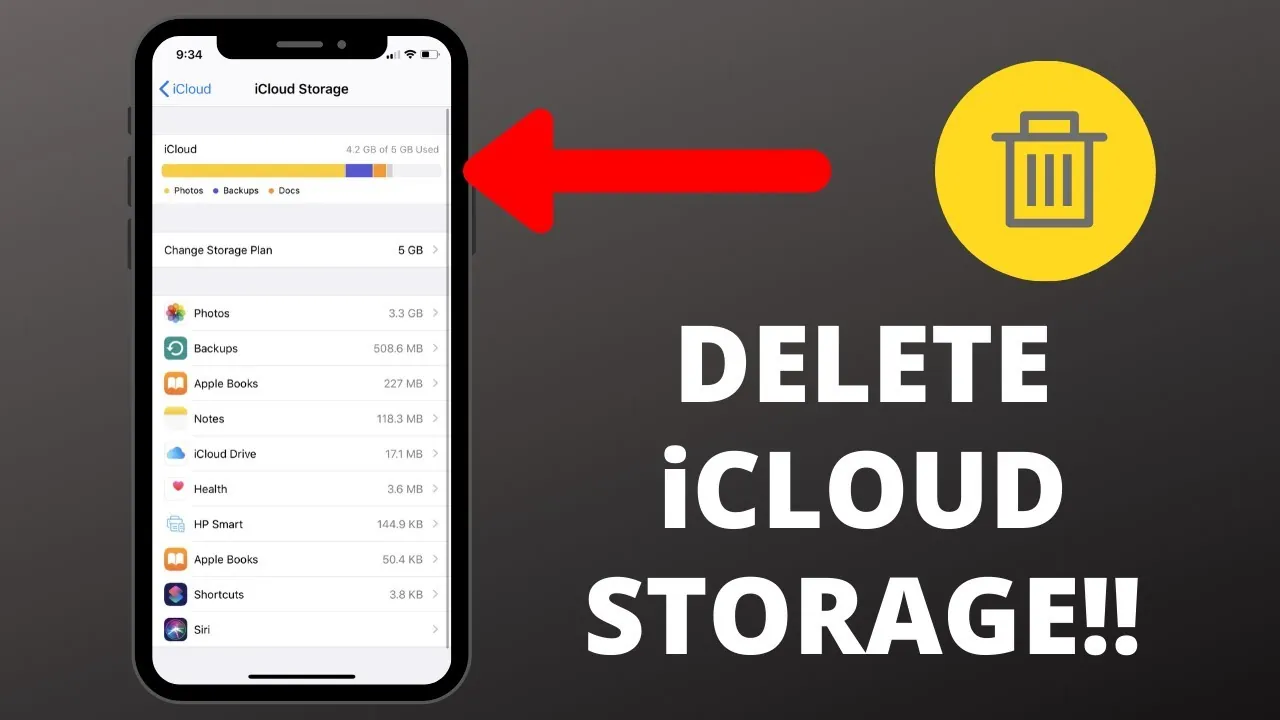
- Check Settings > [your name] > iCloud > Manage Account Storage first — it shows a ranked list of what is using space, so you delete the biggest item instead of guessing.
- Device backups are often the largest hidden item; deleting an old backup for a phone you no longer use can free several gigabytes in one tap.
- Photos and videos usually dominate iCloud usage — empty the Recently Deleted album afterward, or the space isn’t actually freed.
- Turning off iCloud Photos without downloading originals first can cause permanent photo loss; download before you disable.
- iCloud Mail attachments and hidden system data are commonly overlooked; check both before paying for more storage.
- Deleting data in iCloud deletes it on all synced devices — treat every deletion as permanent.
See What Is Actually Using Your Space
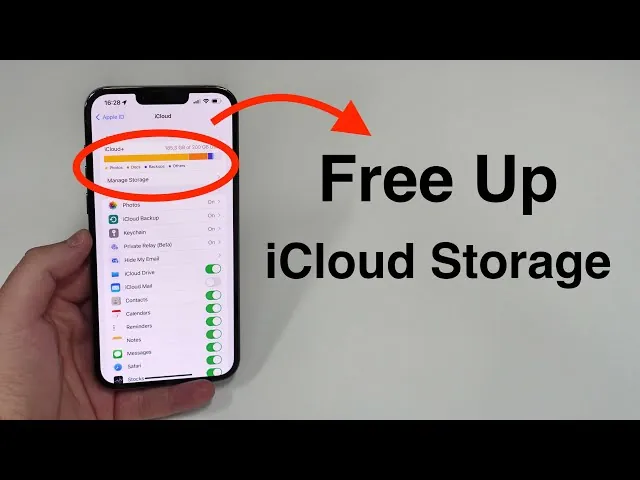
Before deleting anything, get the facts. On your iPhone or iPad, open Settings, tap your name at the top, then iCloud > Manage Account Storage. On a Mac, use System Settings > [your name] > iCloud > Manage. On iCloud.com, sign in and open Account Settings.
You’ll see a bar chart and a list ranked by size: Photos, Backups, Mail, Documents, and a catch-all often labeled System Data or “Other.” Write down the top two or three. Almost every user finds that photos and device backups account for the vast majority of usage, which means two or three actions can solve most of the problem.
A few things to know about this screen:
- The list is per-account, not per-device. Everything syncing to your Apple Account counts against the same 5 GB.
- System Data has no delete button. It shrinks on its own when you delete the underlying items or sign out and back in.
- The numbers can lag by a few minutes after a deletion. Don’t panic-delete twice.
Delete Old Device Backups
This is the single most underused fix. Every iPhone, iPad, and iPod touch that has ever backed up to iCloud keeps its own backup — including the phone you traded in three years ago. Each backup can run from under 1 GB to 10 GB or more depending on what it contains.
Go to Settings > [your name] > iCloud > Manage Account Storage > Backups. Tap each device name. You’ll see “Last Backup” date and size. For any device you no longer own or no longer need backed up, tap Delete Backup and confirm.
Warning: Only delete a backup for a device you still have in hand or no longer need. If your current iPhone’s only backup is in iCloud and you delete it, you lose your restore point until the next automatic backup runs. Before deleting your current phone’s backup, make a fresh one or confirm you have a computer backup.
If you keep a backup you need, you can shrink it: open the backup, review the Choose Data to Back Up list, and turn off apps whose data you don’t need restored (for example, apps that store everything in their own cloud). This edits the existing backup rather than deleting it.
Tackle Photos and Videos
Photos and videos are usually the biggest line item, and they’re the easiest place to over-delete. Work in this order:
- Empty Recently Deleted. Deleting a photo moves it to Photos > Albums > Recently Deleted, where it sits for 30 days and still counts against your storage. Empty this album to free the space immediately.
- Find the heavy hitters. In the Photos app, open Albums > Media Types > Videos. Videos are far larger than stills — a few minutes of 4K footage can exceed a gigabyte. Delete screen recordings and duplicate clips first.
- Use the duplicate finder. On iOS 16 and later, Photos shows a Duplicates album under Utilities. Merging duplicates is safe and fast.
- Review screenshots. The Screenshots album accumulates receipts, memes, and one-time codes. Clear it wholesale.
- Turn on Optimize iPhone Storage. In Settings > [your name] > iCloud > Photos, enable Optimize iPhone Storage. Full-resolution originals stay in iCloud while your device keeps smaller versions, so this doesn’t free iCloud space — it frees phone space while keeping everything synced.
Pro Tip: If your photo library is genuinely huge and you want to keep every image, the honest answer is that no amount of cleaning will fit it into 5 GB. Either move older years to an external drive or a computer, or accept that photos are the reason to pay for storage.
Decide What to Do With iCloud Photos
Many people ask whether turning off iCloud Photos will free space. It will — but the consequences depend entirely on the order of operations, and getting it wrong is the most common cause of lost photos.
| Option | What happens to iCloud storage | What happens to your photos | Best for |
|---|---|---|---|
| Keep iCloud Photos on, delete individual items | Space freed per deletion | Deleted everywhere, permanently | Trimming clutter |
| Turn off iCloud Photos after downloading originals | All photo storage freed | Originals remain on device or computer | Moving photos off iCloud entirely |
| Turn off iCloud Photos without downloading | All photo storage freed | Photos may be removed from the device | Not recommended |
| Switch to Optimize iPhone Storage | No change to iCloud usage | Full versions in iCloud, smaller on device | Freeing phone space, not iCloud |
The safe sequence for leaving iCloud Photos: on iCloud.com, select the photos you want to keep and download them to a computer, verify the files open, and only then disable syncing on your devices. Apple’s own guidance on what happens when you turn off iCloud Photos is worth reading before you start.
Clear iCloud Mail Attachments
If you use an @icloud.com, @me.com, or @mac.com address, your mailbox counts against the same 5 GB. Attachments are the culprit — a decade of PDFs and photos sent back and forth.
Open the Mail app, go to Mailboxes, and check Attachments if your client surfaces it; otherwise sort by size. Delete large messages with attachments you no longer need, then empty the Trash and the Junk folder — mail in either still occupies storage until purged. On iCloud.com, use Mail settings to review mailbox usage and empty deleted items.
A useful habit: search your inbox for “has attachment” plus a file type (for example, PDF) and sort oldest first. The first results are usually safe to purge.
Manage Documents, App Data, and Messages
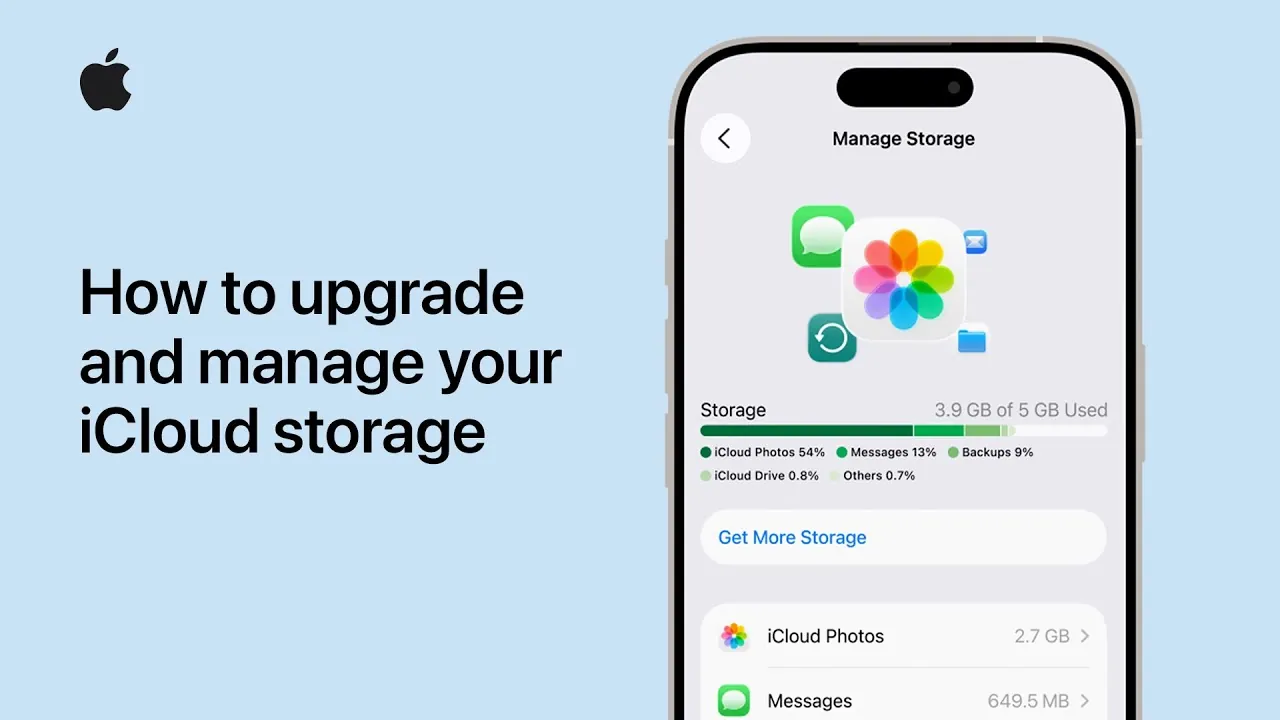
Under Manage Account Storage, tap Documents to see app-by-app usage. Apps like Pages, Numbers, Keynote, and third-party apps that sync to iCloud store their files here. Delete documents and old versions you no longer need, and check each app’s own trash or recently deleted folder.
Messages deserve a mention because people forget they sync. If Messages in iCloud is on, your entire message history — including photos and videos sent in conversations — counts against storage. In Settings > Messages, review Keep Messages and consider switching from “Forever” to one year, and delete large conversation attachments by opening a thread, tapping the contact name, and reviewing shared media.
Understand What “System Data” Means
The System Data or “Other” category is the most confusing line on the storage screen. It isn’t a folder you can open. It typically contains caches, logs, Siri data, and temporary files tied to your account.
What actually helps:
- Sign out of iCloud and back in on one device — this clears cached account data. Do this only when you have your password and a backup, and expect a re-sync.
- Restart the device and wait a day; the figure often drops on its own.
- Update to the latest iOS or macOS — Apple has repeatedly changed how this category is calculated and cleaned.
What doesn’t help: hunting for a “System Data” folder. There isn’t one you can safely edit, and third-party “cleaner” apps that claim to purge it aren’t necessary and can be risky.
Use the Offload and Storage Tools Built In
Apple ships several tools that do the cleaning for you, and most people never open them.
- Offload Unused Apps (Settings > General > iPhone Storage) removes an app’s binary while keeping its data — useful for phone space, and it can indirectly reduce backup size.
- Review Large Attachments in the same screen shows the biggest files across Messages and Mail.
- Recommendations at the top of iPhone Storage suggests concrete actions like auto-deleting old conversations.
- iCloud.com Photos lets you select by date range and delete in bulk from a browser, which is far faster than tapping on a phone.
None of these tools will delete something you need without confirmation, but each one is a one-way action — read the prompt before tapping.
Stop the Refill: Habits That Keep It Clean
Cleaning once is easy; staying clean is the actual goal. Build these into your routine:
- Check Manage Account Storage monthly. It takes under a minute and catches surprises early.
- Empty Recently Deleted and Trash on the same day you delete anything. Otherwise you haven’t freed space.
- Delete old device backups the day you retire a device. Add it to your trade-in checklist.
- Turn off iCloud sync for apps that don’t need it. In Settings > [your name] > iCloud, toggle off apps whose data lives elsewhere anyway.
- Trim videos before they sync. A 30-second trim before upload saves more than any cleanup later.
- Don’t screenshot what you can save as a note or bookmark. Screenshots are pure accumulation.
Know When Paying Is the Right Answer
Sometimes the correct move is to stop cleaning and start paying, and there’s no shame in it. Compare the plans honestly against what you actually use.
| Plan | Storage | Typical fit |
|---|---|---|
| Free | 5 GB | Mail and documents only; no meaningful photo library |
| iCloud+ 50 GB | 50 GB | One phone backup plus a modest photo library |
| iCloud+ 200 GB | 200 GB | Families sharing photos and backups |
| iCloud+ 2 TB | 2 TB | Large photo and video libraries, multiple devices |
If your photo library alone exceeds the tier above you, cleaning will buy weeks, not months. Paying for the tier that matches your actual usage is cheaper than the hours you’ll spend deleting. Check current pricing and plan details on Apple’s iCloud+ page, since prices vary by country and change over time.
Common Mistakes That Waste Your Time
- Deleting from the Photos app and stopping there. Recently Deleted still holds the space for 30 days.
- Turning off iCloud Photos to “free space” without a backup. This is the classic way to lose a library.
- Deleting your current phone’s only backup. You lose your restore point, not just space.
- Using third-party cleaner apps. Everything you need is in Settings; outside apps add risk without adding capability.
- Assuming one device’s storage screen reflects the account. It reflects the account, not the device — the number is the same everywhere.
- Ignoring Mail. A mailbox with years of attachments can quietly hold gigabytes.
Related guides
Frequently Asked Questions
Why does my iCloud storage fill up so fast?
The 5 GB free tier is shared across photos, device backups, mail, and documents, and a single iPhone backup plus a year of photos can exceed it on its own. Check Manage Account Storage to see which category is largest — it’s almost always photos or backups.
Does deleting photos from my iPhone delete them from iCloud?
Yes, if iCloud Photos is on. Deletion syncs to every device signed into your account, and the photo moves to Recently Deleted for 30 days before being permanently removed. If you want to keep a copy, download it to a computer first.
Can I delete an iCloud backup and keep my photos?
Yes. Backups and photos are separate categories. Deleting a device backup doesn’t touch your photo library, and deleting photos doesn’t remove a backup — though the next backup will reflect the deletion.
What happens if I turn off iCloud Photos?
Your photos stop syncing, and iCloud stops storing new ones. Photos already in iCloud may be removed from your device after a grace period, so download originals to a computer first if you want to keep them. Storage is freed once the library is removed.
Is it safe to use a third-party cleaner for iCloud?
It isn’t necessary and carries risk. Apple’s built-in tools cover every category, and outside apps can’t access iCloud data you haven’t already given them permission to see. Stick to Settings and iCloud.com.
How do I free iCloud storage without deleting anything?
You can reduce usage without losing data by turning off sync for apps you don’t need in iCloud, switching Messages to a one-year retention, and moving older photo years to an external drive. If that isn’t enough, a paid tier is the honest solution.
Conclusion
Start with the Manage Account Storage screen today and delete the single largest item you can live without — one old backup or one emptied Recently Deleted album is often enough to get you back under the limit, and the monthly check keeps it that way.