
A dirty charging port is one of the most common reasons an iPhone won’t charge, and you can clean it at home in about 10 minutes with a wooden toothpick and good light. The job is easy to medium — easy if the port just has lint, medium if the dirt is packed in hard. You don’t need to open the phone, but you do need to stop before you touch metal pins. Here’s how to clean charging port on iPhone safely, step by step.
Expect 10 to 15 minutes for a light lint clean, and up to 30 minutes if the port is packed with compacted pocket fluff. There’s no real cost: a toothpick, a soft brush, and a light you already own.
A repair shop would charge you for a port clean, but the price varies by shop and city, so check locally rather than trust a number here. The one thing you must have before starting is a bright light that lets you see the bottom of the port clearly. Without that, you’re cleaning blind.
What you need for an iPhone charging port
| Item | How much | Why it’s needed | A substitute |
|---|---|---|---|
| Wooden or plastic toothpick | 1 | Loosens lint without scratching pins | none — don’t swap this |
| Bright flashlight or phone light | 1 | Lets you see the port floor | Desk lamp, angled close |
| Soft anti-static brush | 1 | Sweeps loose dust out | Clean, dry soft toothbrush |
| Can of compressed air | 1 short burst | Blows out loose debris | none — don’t swap this |
| Isopropyl alcohol 70% or higher | A few drops | Cleans sticky residue on the rim | none — don’t swap this |
| Clean microfiber cloth | 1 | Wipes the port edges dry | Lint-free paper towel |
| Magnifying glass or loupe | 1 | Spots pins you might miss | Phone camera zoomed in |
Before you start cleaning the port
- Power the iPhone off completely — hold the side button and slide to power off. A live port plus a metal tool is how people short pins.
- Unplug everything — the cable, any case, and pop off a case that covers the bottom edge. Cases trap lint right at the port mouth.
- Work over a clean, flat, well-lit table — not over a sink or carpet. A dropped toothpick tip inside the port is a second job.
- Have your light ready before you dig — the preparation people skip is checking the port with light first. Digging without looking is how pins get bent.
- Know the limit — if you see bent, broken, or discolored pins, or the port is wet, stop. Water and internal damage need Apple or an authorized service provider, not a toothpick.
One more check belongs here, because it decides whether you clean at all: look at the port before you touch it. Shine the light straight in and tilt the phone until you can see the back wall.
A port that looks clear but still won’t charge is usually a cable or charger problem, not lint. Try a second cable you know works before you go digging.
If the phone is under Apple’s warranty or you pay for AppleCare+, remember that a toothpick isn’t an approved tool. Damage you cause while cleaning isn’t covered.
That matters most on a phone you can’t easily replace. On an older iPhone you’re ready to retire, the risk is lower, but the wet-port rule still applies either way.
Step-by-step: cleaning the iPhone charging port
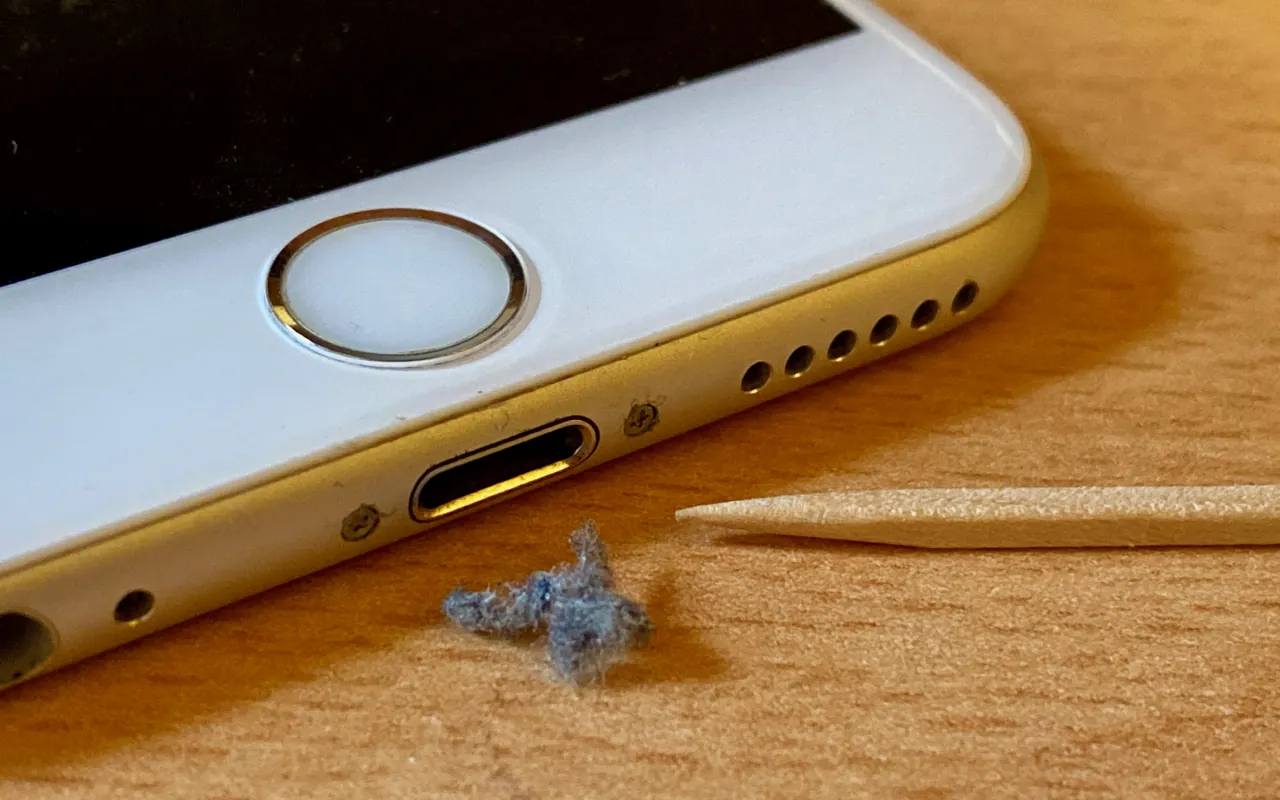
Power off and check the port with light first. Shine your flashlight straight into the port at a slight angle. You’re looking for a grey or white lint mat, dark residue, or bent pins. If you see bent pins, stop here — that’s a repair, not a clean. This check takes 30 seconds and tells you whether you’re doing a light clean or a deep one.
Blow out loose debris with one short burst of compressed air. Hold the can upright, keep the nozzle about 2 inches from the port, and give one burst of 1 to 2 seconds. Keep the can level — tilting it sprays cold liquid. You’ll know it worked if loose dust flies out and the port floor looks clearer under your light.
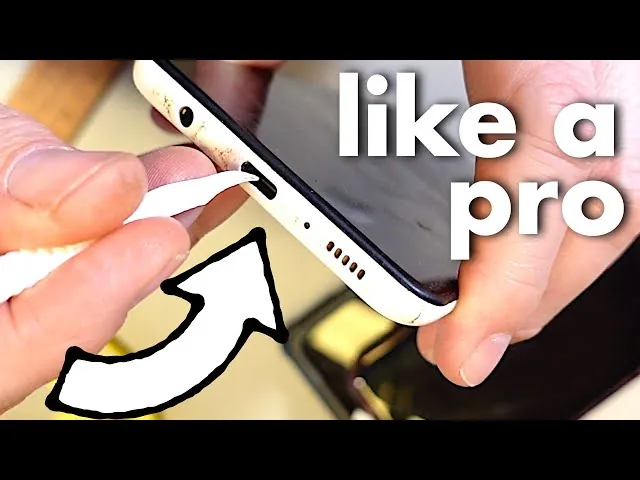
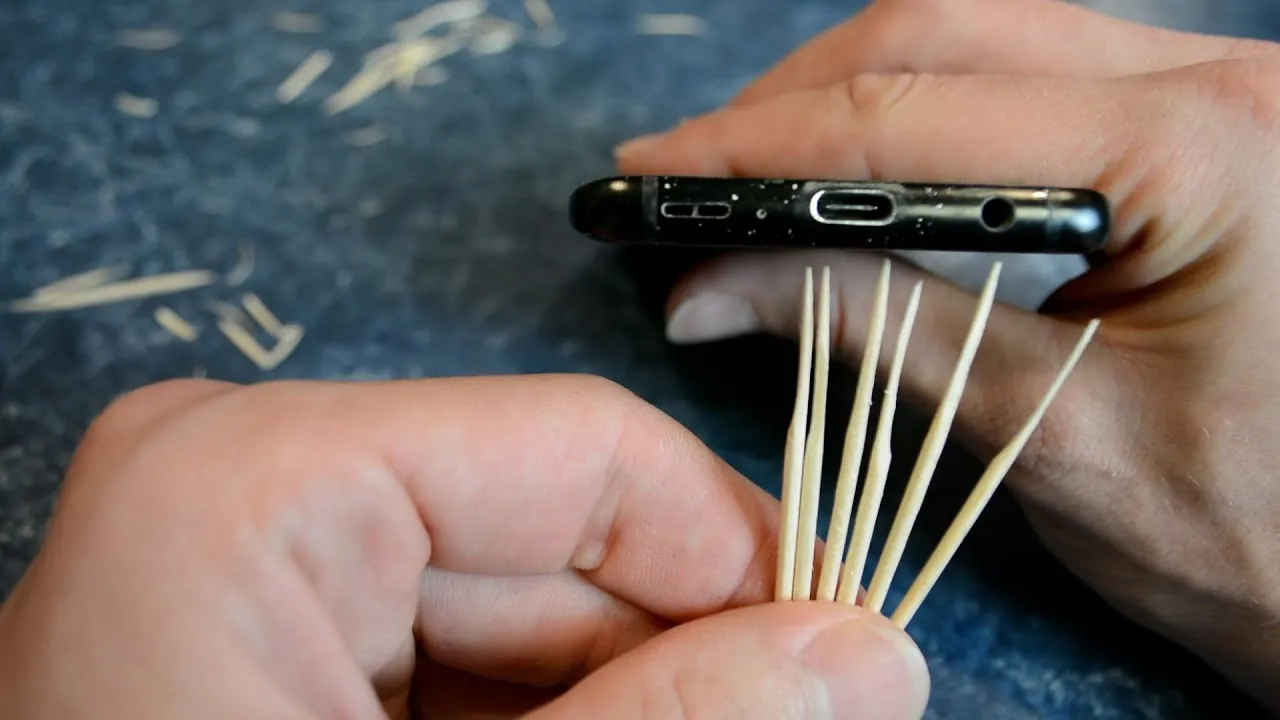
Loosen the lint with a wooden toothpick. Gently scrape the soft lint mat at the back wall of the port, working from one side to the other. Use light pressure only — the pins are delicate. Stop as soon as the toothpick meets resistance. You’ll see grey fluff coming out on the tip, which means it’s working.
Sweep the sides with a soft brush. Use a dry anti-static brush or a clean soft toothbrush and brush from the port opening toward the back, then out. Do 5 to 6 short strokes. This clears the loose dust the toothpick loosened. Check with your light — the port floor should look darker and cleaner, not grey.
Wipe the port rim with a drop of isopropyl alcohol. Put 1 to 2 drops on a microfiber cloth — never pour alcohol into the port. Wipe around the metal rim and the edges only. This removes sticky residue that traps new lint. Let it dry for 2 to 3 minutes before anything goes back in.
Look again with light and a magnifier. Check the port floor, the pins, and the side walls. You want to see clean metal contacts and no grey mat. If lint is still packed in, repeat steps 3 and 4 once. Don’t repeat more than twice — that’s when people start scratching.
Test with a cable you know works. Plug in a Lightning or USB-C cable (whichever your iPhone uses) and check that the phone shows the charging bolt within 5 seconds. If it charges, the clean worked. If not, try a second cable before blaming the port.
Test the cable fit. A clean port lets the cable click in fully, flush with the phone’s edge. If the plug still sits proud or feels loose, there’s likely more lint at the back. Go back to step 3 with light and try once more.
Wipe the cable end too. Lint on the cable connector pushes back into a clean port. Wipe the metal end with a dry cloth and check for bent contacts. A dirty cable undoes a good clean in a single plug-in.
Power on and charge to confirm. Turn the phone on, plug in, and leave it for 5 minutes. The battery percentage should climb. If it does, you’re done. If it charges only when you wiggle the cable, the port or cable has deeper damage — book a service.
How to know the port is really clean
The clearest sign is a cable that clicks in fully and sits flush with the phone’s edge, with the charging bolt appearing within about 5 seconds of plugging in. If the plug still stands proud, lint remains at the back of the port. That’s the check you can repeat yourself, and it doesn’t depend on how the port looks.
Under a bright light, a clean port shows dark, even space at the floor and shiny metal contacts on the back wall. A grey or white mat means lint is still packed in. If you see the mat after two rounds of cleaning, stop — more scraping risks the pins.
Charging speed is the second sign. A clean port should charge at the normal rate for your charger, with the percentage climbing steadily over 5 minutes. If the phone charges but very slowly, or only at certain angles, the port may still have residue or the cable may be worn.
If the phone still won’t charge after a clean and a cable swap, the problem is likely inside the port or the battery — not dirt. Apple’s support pages list the charging troubleshooting steps and the service options, and that’s the point to use them rather than keep digging. Apple also warns against using liquids or compressed air directly inside openings on some models, so check your model’s guidance in the iPhone support documentation before you spray.
If something goes wrong during the clean
| What happened | Why | What to do |
|---|---|---|
| Phone won’t charge after cleaning | Lint still packed at port floor | Repeat steps 3 and 4 once, check with light |
| Cable feels loose or falls out | More lint behind the connector | Clean deeper with toothpick, then retest |
| Pins look bent or broken | Tool pressed too hard on contacts | Stop, book Apple or authorized service |
| Port is wet or damp inside | Liquid got in during cleaning | Power off, don’t charge, let it dry fully |
| Phone shows “liquid detected” warning | Moisture in the port | Unplug, dry the port, wait before charging |
| Scratching sound when inserting cable | Grit or a damaged pin inside | Stop inserting, inspect with light and loupe |
How often to clean an iPhone charging port
Clean the port every 3 to 6 months for most people, and every 1 to 2 months if you carry the phone in a pocket or bag with lint. That range assumes a case that covers the bottom edge and a cable you plug in daily. If you rarely use the port because you charge wirelessly, you can stretch it to every 6 to 12 months.
Two things move that number most. The first is where the phone lives — a pocket full of fluff fills the port far faster than a desk or a purse. The second is your cable: a dirty or worn cable sheds debris into the port every time you plug in, so a clean cable keeps the port clean longer.
The check is simple: shine a light into the port once a month. If you see grey lint building at the floor, clean it then rather than waiting for a charging problem. A port that already caused one charging failure usually needs the shorter interval, because the same pocket and the same habits will refill it.
Related guides
- How to Clean Your Android Charging Port Without Damage
- 4 Steps to Clean Your Samsung Charging Port
- How to Clean Your iPad Charging Port Without Damaging It
Frequently asked questions
Can I clean my iPhone charging port with a paper clip?
No — don’t use a paper clip, pin, or any metal tool. Metal scratches the gold contacts and can short the pins, and a bent pin usually means a paid repair. A wooden toothpick or a plastic tool is the safe choice. If the lint is too hard for a toothpick, that’s a sign to stop and let a technician handle it.
Why does my iPhone charging port keep getting dirty?
Pocket lint, dust, and fabric fibers collect in the port because it’s an open cavity that faces down in your pocket. A case with an open bottom edge makes it worse. Cleaning the port every 1 to 2 months and wiping your cable end each time keeps the buildup down. If it fills fast, check whether your case or pocket is the source.
How long does it take to clean an iPhone charging port?
About 10 to 15 minutes for a normal lint clean, and up to 30 minutes if the port is packed hard. The range depends on how much lint is compacted and whether you need a second round. Add 5 minutes for the charge test at the end. Most of the time goes into looking with light, not scraping.
Is it safe to use compressed air on an iPhone charging port?
Yes, in short bursts from about 2 inches away, with the can held upright. One burst of 1 to 2 seconds is enough. Don’t tilt the can — it sprays cold propellant. And check Apple’s guidance for your model first, because the company advises against some cleaning methods on certain iPhones. Keep the nozzle outside the port.
What happens if I get alcohol inside the charging port?
A drop on the rim is fine and dries in 2 to 3 minutes. Pouring or spraying alcohol into the port is not — it can sit inside and trigger a liquid warning. If liquid gets in, power off, don’t charge, and let it dry fully before plugging in. If the warning stays after drying, get it checked by Apple or an authorized provider.
Does it matter which cable I use after cleaning?
Yes — a worn or dirty cable can refill the port and cause the same charging problem. Use a cable that clicks in firmly and shows no bent contacts. Test with a second known-good cable if the first doesn’t charge. If both cables fail after a clean, the port itself needs a technician’s look.
Can a dirty charging port damage my iPhone?
A lint-filled port mostly stops charging, which is annoying but not damaging. The real risk comes from what people use to clean it — metal tools bend pins, and liquid causes corrosion. Keep to wood, plastic, and short air bursts, and stop at bent pins. That keeps a simple clean from turning into a repair.
How do I know if it’s the port or the cable?
Swap the cable first — it’s the fastest test and costs nothing. If a known-good cable charges the phone, the cable was the problem. If neither cable works after a clean, the port or the charging system inside the phone is the likely cause. That’s when you book service rather than keep cleaning.
Conclusion
If charging still feels loose or slow after you’ve cleared the lint, try a different cable and charger before assuming the phone is broken — that rules out the cheap stuff first. If nothing changes, it’s worth having Apple or a repair shop take a look, since the port itself may need replacing.